

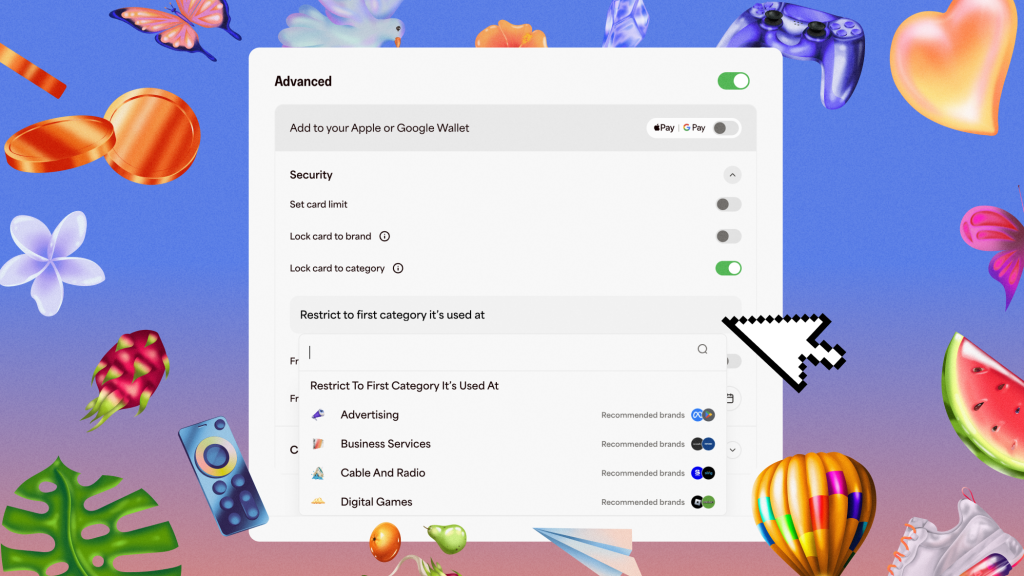
Fluz Virtual Cards allow you to customize every virtual card to match how you spend. You can create unlimited cards, customize addresses, choose which card program you’re using, set card limits, freeze your card on a set date, and much more.
Now, we’re excited to introduce merchant category locks on Fluz Virtual Cards, giving you even more flexibility and control over your spending.
Controlling spend without slowing down.
Fluz users rely on Virtual Cards to manage personal and business expenses, from software subscriptions, advertising, travel, and office supplies. Users can create unlimited virtual cards and customize each one to support specific expenses or use cases.
The challenge is making a virtual card flexible enough to be usable, while still preventing purchases outside its intended purpose
Introducing controls at the category level
Instead of locking a virtual card to a specific merchant, Fluz Virtual Cards let you lock spend to an entire merchant category. You choose the category once, and the card automatically works only at merchants that match it.
For example, if you want to issue employees a virtual card for fuel expenses, you can lock the card to the Fuel category. The card will work at any qualifying gas station, while automatically blocking purchases in unrelated categories.
You can restrict a virtual card to:
|
||||||
Combined with existing features like spending limits, freeze dates, customizable addresses, and unlimited card creation, category locks give every Fluz Virtual Card unmatched flexibility and control. With up to 1.5% cashback on everyday purchases, your business doesn’t have to choose between control and rewards
With category-locked virtual cards, you can:
- Prevent off-category purchases
- Reduce manual oversight and transaction reviews
- Eliminate surprises before they happen
- Ensure every card is used exactly as intended
Whether you’re managing employee expenses, subscriptions, or personal budgets, category-level controls help you spend with total confidence.
How to lock your virtual card to a merchant category
Step 1: Create your Virtual Card
Make a new card on our web portal in one click.
Step 2: Dial in your settings
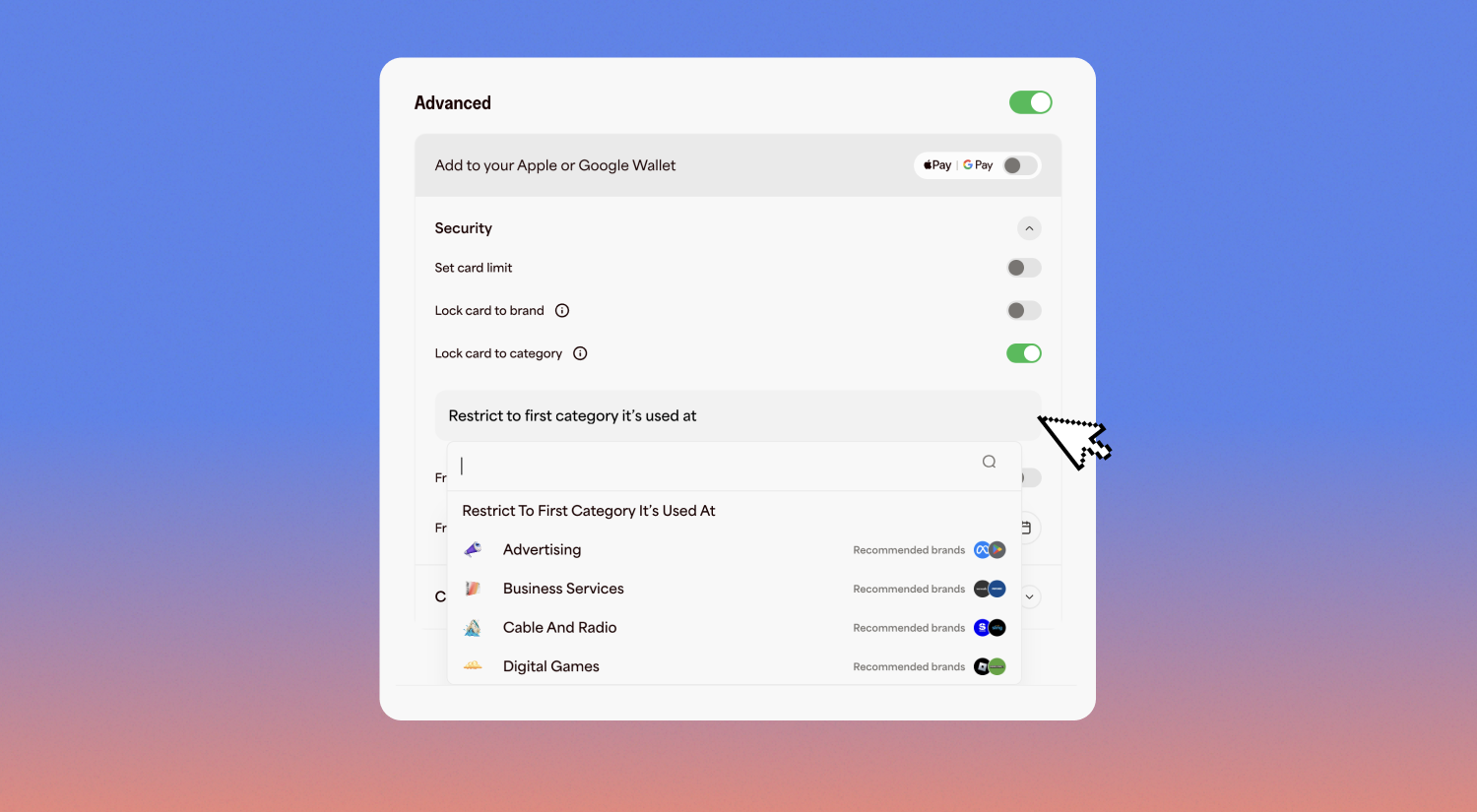
Toggle "Advanced,” then “Lock card to category” to lock your virtual card to a merchant category, as show in the specific screen below.
Step 3: Start using your Virtual Card instantly
Add the Virtual Card to your digital wallet or copy the details to pay online.